
Profile Help
When you first log into your account you will see your personalised "Members Area" page. From here you can access all your benefits as well as see the information we have for you. You can request changes to this information and, for Instructors, change your website listing directly.How to check your Membership Information
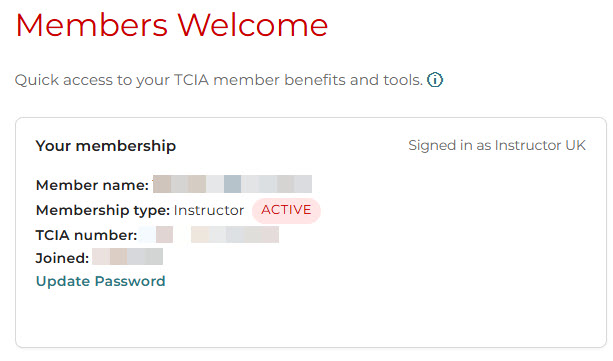
You can view your membership information in the top left corner of the Members Area (the page you see when you first log in) inside the box “Your membership”.
What the entries mean
Member Name- This is the name we use to address your correspondence such as newsletters and invoices.
- You can change this by clicking on the link “Change your contact details” which is in the box “Your membership” in the top left of the Members Area .
- This will open a form to send to us to request a change.
- If you are an Instructor Member, you can change the name shown on your public profile by selecting the Edit your Instructor Listing option which is in the Members Dashboard.
- Your membership type, such as Instructor or Ordinary Member.
- This is your membership number which we quote on our invoices and newsletters.
- The date you joined the Tai Chi Internal Arts Union. If you have left and later rejoined, this will show the most recent joining date.
How to reset your password
You can change your password at any time from your account pages. This is useful if you want a stronger password or if you feel your current one is no longer secure.
1. Open the New Password page
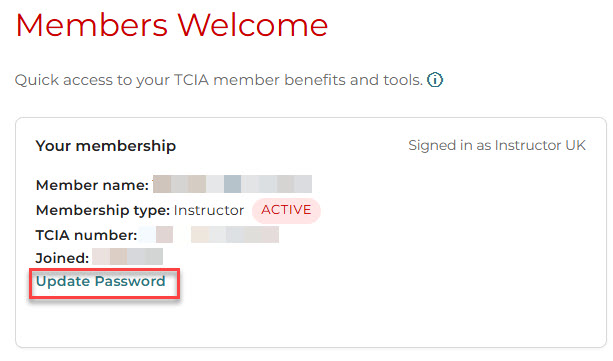 Select Update Password from the link in the Your Membership section or go direct from this link.
2. Enter your password details
Select Update Password from the link in the Your Membership section or go direct from this link.
2. Enter your password details
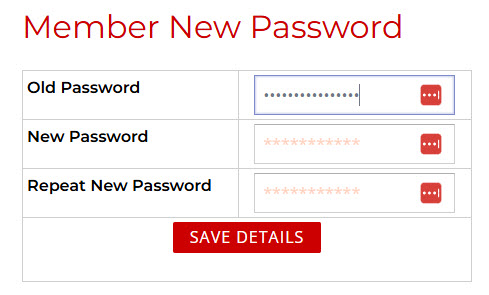 You will see three boxes:
Select Update Password from the link in the Your Membership section or go direct from this link.
2. Enter your password details
You will see three boxes:
- Old Password Type your current password.
- New Password Type the new password you would like to use.
- Repeat New Password Type the same new password again to confirm it.
If you cannot remember your old password
- You cannot reset your password from this page without knowing your old one.
- If you have forgotten it, return to the login page and use the Forgotten Password link.
- Follow the instructions to receive a reset email, or contact the TCIA admin team if you need help.
General Help
Answers to common membership questions, including t-shirt requests, renewals, contact details, insurance information, and becoming an Instructor Member.T-Shirt Request
To request your free t-shirt please go to your Members Area and choose the Claim Offer button in the Free T-Shirt section.
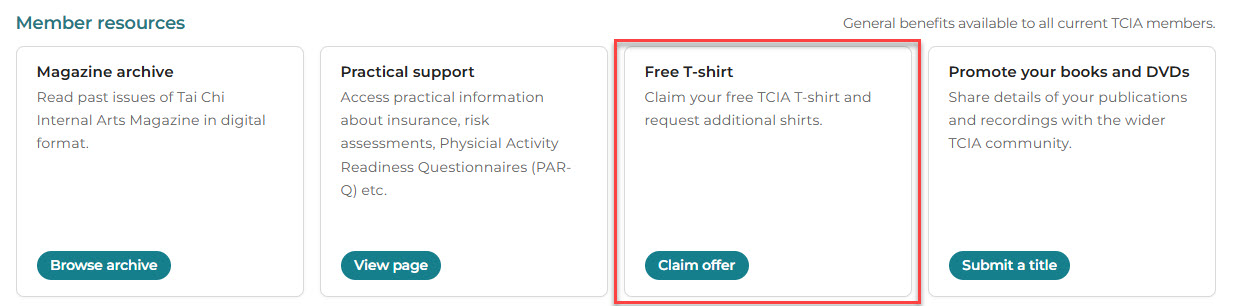 The form you will be asked to complete also allows you to purchase additional t-shirts.
We have automated our processes to save time and members’ money and using these forms are what informs our team of your request. It also enables us to track orders and stock.
It really helps us and saves members’ money when you help by using the form.
The form you will be asked to complete also allows you to purchase additional t-shirts.
We have automated our processes to save time and members’ money and using these forms are what informs our team of your request. It also enables us to track orders and stock.
It really helps us and saves members’ money when you help by using the form.
The form you will be asked to complete also allows you to purchase additional t-shirts.
We have automated our processes to save time and members’ money and using these forms are what informs our team of your request. It also enables us to track orders and stock.
It really helps us and saves members’ money when you help by using the form.
Change of contact details
If you would like to change your postal address or email address please go to your Members Dashboard and scroll to the bottom of the page where you will find the Help and Support section.
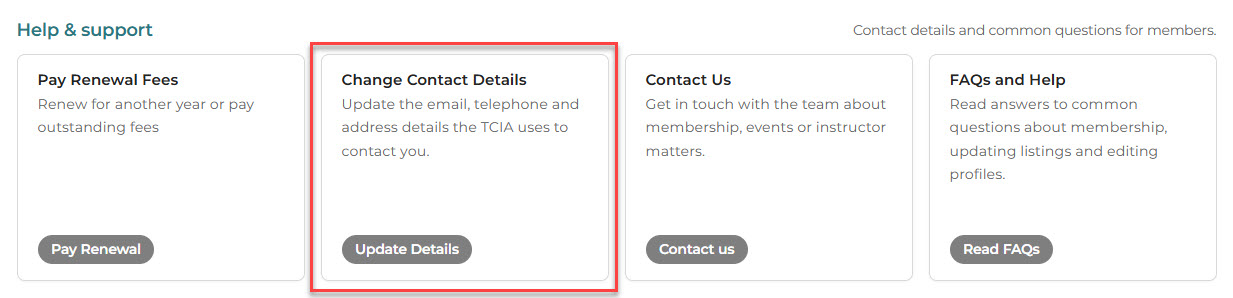 Click on the Update Details button in the Change Contact Details section or go directly to this form.
Click on the Update Details button in the Change Contact Details section or go directly to this form.
How to pay your renewal fee
If you would like to pay your renewal fee please go to your Members Dashboard and scroll to the bottom of the page where you will find the Help and Support section.
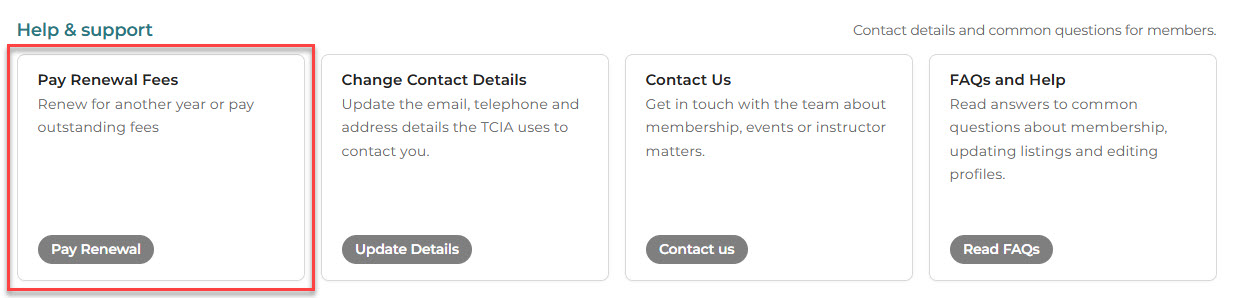 Click on the Pay Renewal button or go directly to this form.
Click on the Pay Renewal button or go directly to this form.
Insurance query
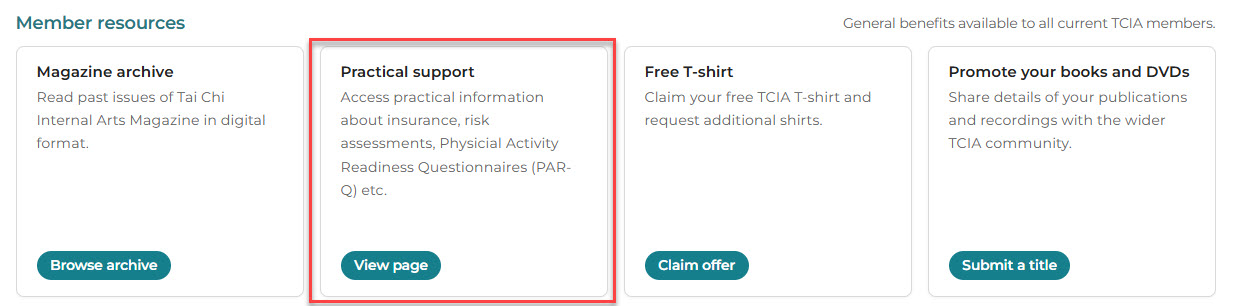 If you would like to understand our current position on insurance for our members, please go to your Members Dashboard and click on the link for practical support (or visit the page directly) where you will find this information as well as other help such as PARQ and risk assessment templates etc.
Instructors only: update your website listing
Select the box Edit Your Instructor listing. This will take you to your Online Profile page where you can update the information that appears in your public listing. The page is divided into several tabs. Below are explanations for each tab.How to update your General information
This section explains the General tab.
Some fields can be changed instantly. Others need to be checked by the TCIA admin team before they appear on the website.
This helps us keep member data accurate and prevents errors in public listings. To view and modify your profile, follow these steps:
1. Open the General tab
Select Edit your Instructor listing from your Members Area.
 The page will open on the General tab. If not, click it manually.
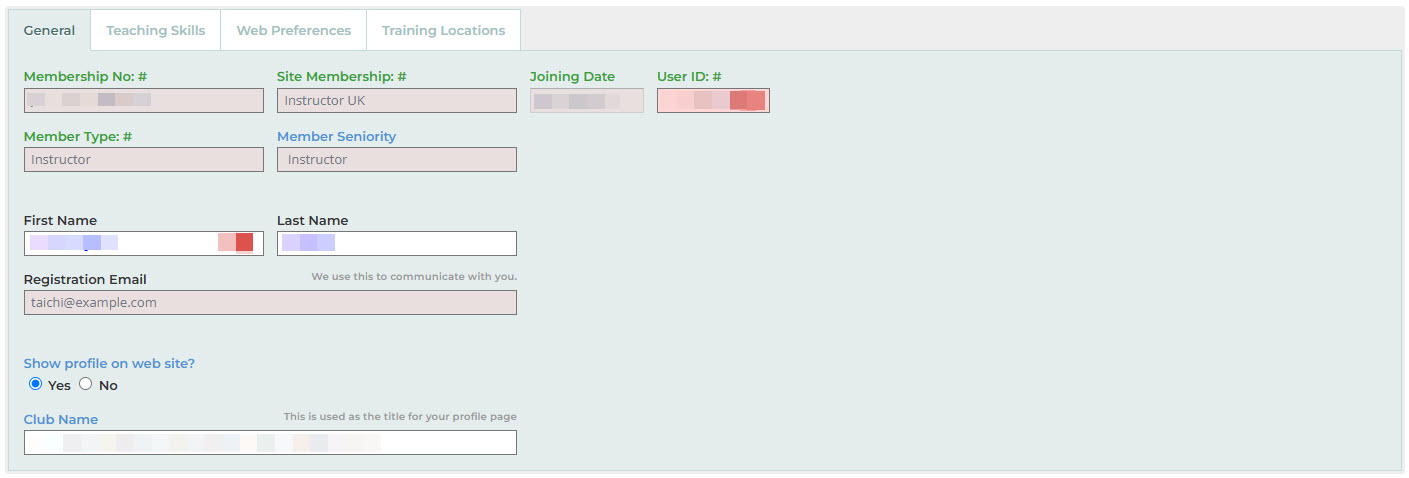 2. Fields you will see
The page will open on the General tab. If not, click it manually.
2. Fields you will see
- Membership No, Site Membership, Member Type, Member Seniority These are set by the TCIA office and cannot be edited. They show your current membership status and level. If you have been a member for 10 or more years then this will prefix the word “senior” in front of your membership type.
- Joining Date and User ID These are system records and cannot be changed.
- First Name and Last Name You can update these if something is incorrect or you use a different teaching name. Changes may need approval before they appear publicly. Changes made here are independent of the private records we hold for you. If you need to change the way we address you, for example on our invoices and newsletters, then you need to request this on the “Change your contact details” form in the “Your Membership” section of the Members Area.
- Registration Email This is the address we use to contact you. You can update this using the “Change your contact details” form in the “Your Membership” section of the Members Area.
- Show profile on website? Select Yes if you want to appear in the public instructor search. Select No if you prefer to stay hidden.
- Club Name This appears as the title of your profile page. Changes are checked by admin before they go live.
How to update your Teaching Skills
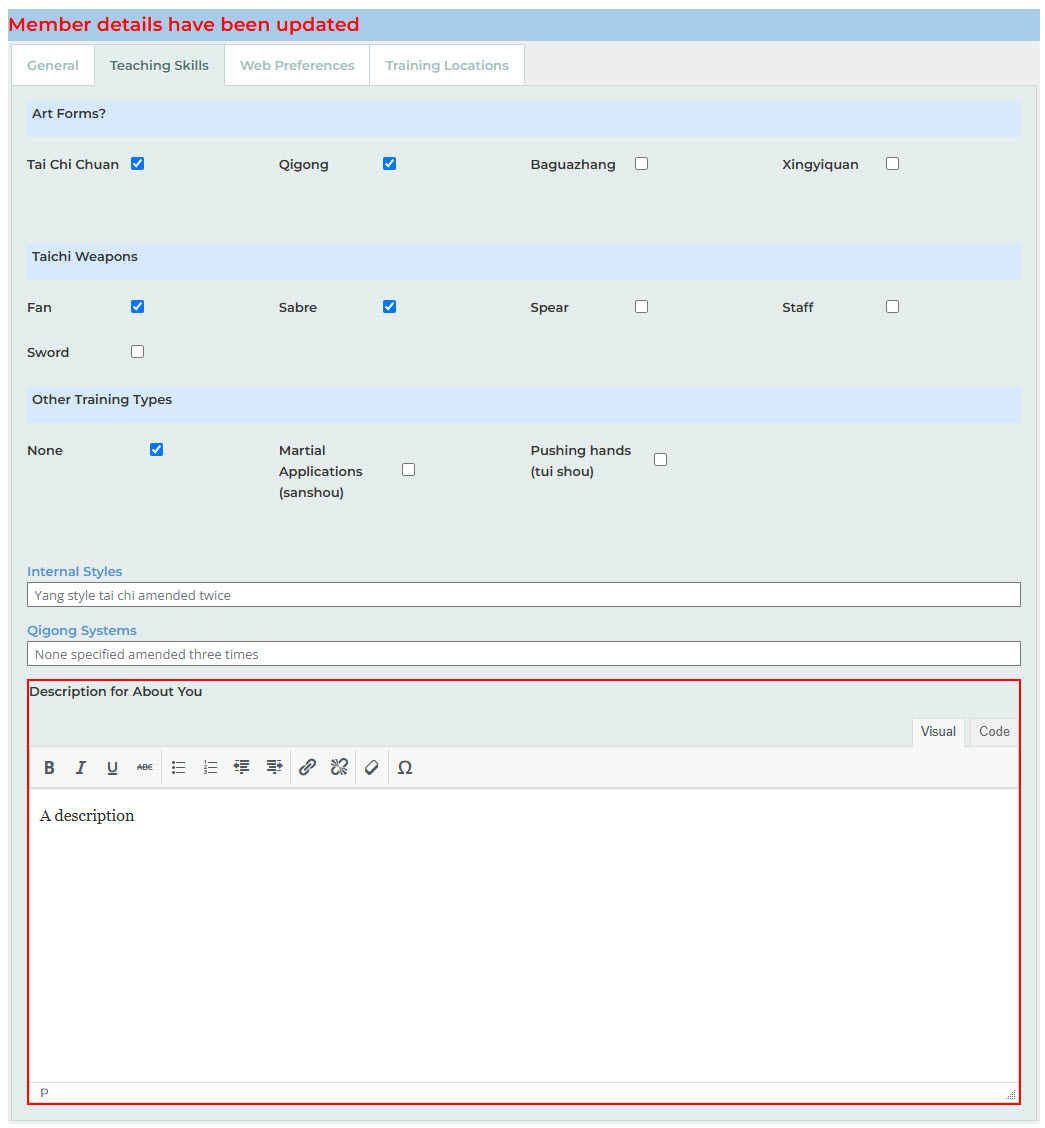
The Teaching Skills tab lets you list the arts and systems you teach and add a short description for your public profile. Some fields update straight away. Free-text entries are checked by the TCIA admin team before they appear on the website.
1. Opening the Teaching Skills tab
Select Edit your Instructor listing from your Members Area then click the Teaching Skill tab
 2. Update Art Forms
You will see tick boxes for the main arts:
2. Update Art Forms
You will see tick boxes for the main arts:
2. Update Art Forms
You will see tick boxes for the main arts:
- Tai Chi Chuan
- Qigong
- Baguazhang
- Xingyiquan
-
- Yang Style
- Chen Style
- Eight Brocades
- Zhan Zhuang
How to update your Web Preferences
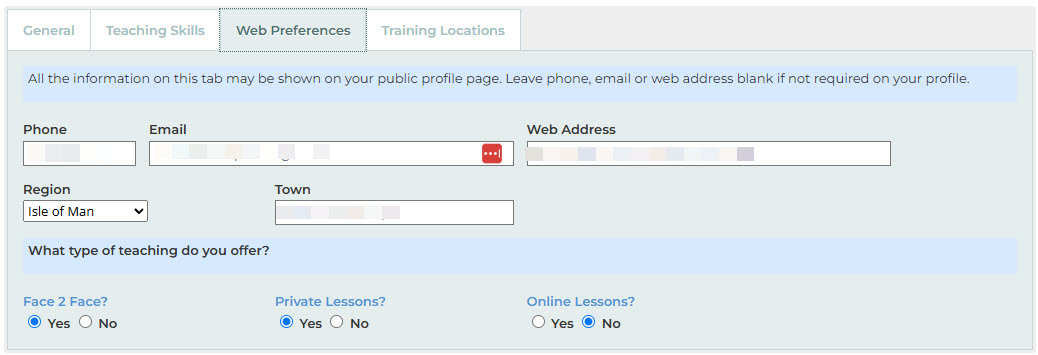
The Web Preferences tab controls what contact information and teaching options appear on your public profile. Everything on this tab is optional. Only add details you are happy to share openly.
1. Opening the Web Preferences tab
Select Edit Your Instructor Listing from the Members Area and choose the Web Preferences tab.
 2. Contact information
You can provide any of the following:
2. Contact information
You can provide any of the following:
2. Contact information
You can provide any of the following:
- Phone A phone number students can use to reach you. Leave it blank if you prefer not to be contacted by phone.
- Email The email you want shown publicly. This can be different from your registration email.
- Web Address A link to your school website or personal teaching page.
-
- Select your Region from the dropdown menu.
- Type your Town in the box provided.
- Face to Face?
- Private Lessons?
- Online Lessons?
How to update your Training Locations
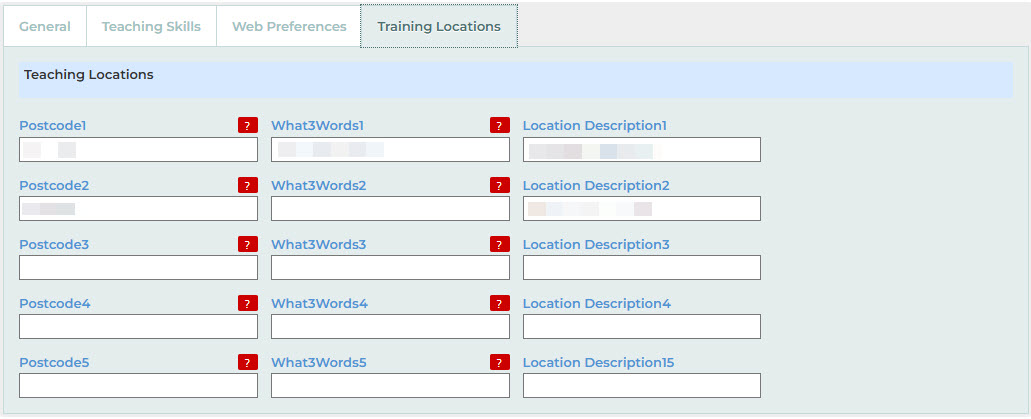
The Training Locations tab lets you list the places where you teach. These details appear on your public profile so students can find you easily. You can add up to five locations.
1. Opening the Training Locations tab
Select Edit Your Instructor Listing from your Members Area and choose the Training Locations tab.
 2. What each field means
2. What each field means
- Postcode The postcode of the place where you teach. This helps students search by area.
- What3Words what3words is a simple way to give an exact location. It uses a unique combination of three words to identify a precise 3m square anywhere in the world.
How to find your what3words address:
- Go to what3words.com or open the what3words app.
- Enter the postcode of your teaching venue.
- Zoom in on the map until you can see the building clearly.
- Select the exact entrance or meeting point you want students to arrive at.
- Copy the three-word address shown (for example: ///softly.jazz.picked).
- Select the entrance you actually use, not just the centre of the building.
- If your venue has multiple doors, choose the one students should arrive at.
- If you teach outdoors, choose the exact place you meet.
- Location Description A short line describing the venue, such as “St Mary’s Church Hall”, “Riverside Park – bandstand”, or “Community Centre Room 2”. This appears alongside the postcode and what3words address.